

A tour of the web page
Open it at http://<yagi address>:9244/ (see Getting started).
It has light and dark themes, and follows your computer’s unless you choose one with the buttons at the top right.
Besides sharing the tuner, it is a web UI for the tuner itself: it does what you would normally open the HDHomeRun’s own web page for (channels, scanning, device details, restarting, firmware), more clearly and with more on top (what is on, who is watching, signal tests, filtering, history, logs). The tuner’s own page is still one link away on a tuner’s Device tab for anything it doesn’t cover.
These pictures are of a demo with a made-up tuner, guide and viewers.
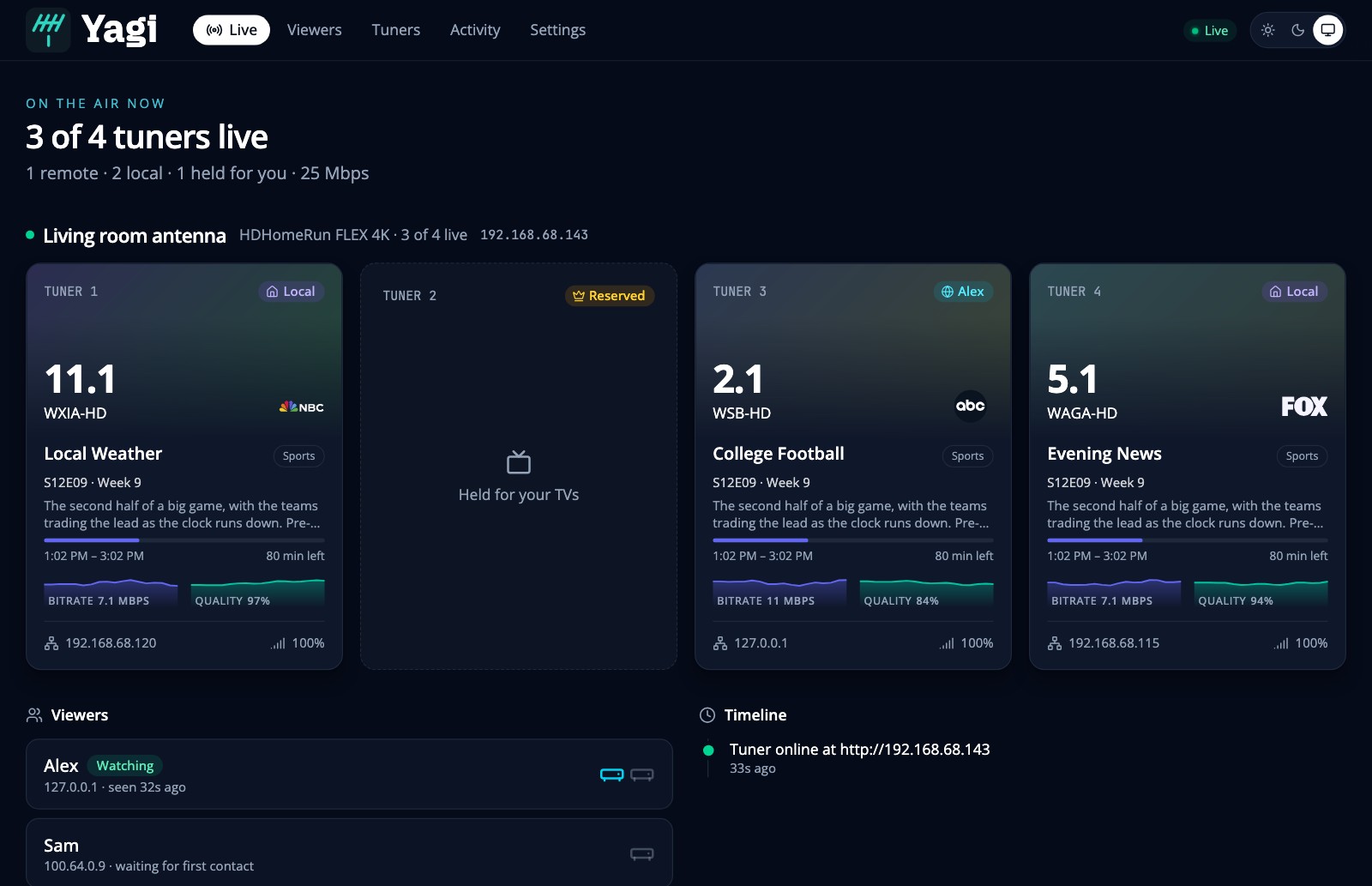
What is happening right now. Each tuner has a header (its name, its model, how many of its tuners are live and its address), and one tile for each of its tuners:
- Who has it. A pill at the top: a viewer by name (globe), one of your own devices (house, shown as Local), a tuner held for your TVs (crown), or free.
- What is on. The channel, its logo, and, from SiliconDust’s program guide, the show’s picture faded behind the top of the tile, its title, category, episode and description, and how far into it you are. A tile without a picture is normal when the guide has none.
- How it is doing. The bitrate and the signal quality over the last couple of minutes, and the signal strength as bars (more bars, stronger) with where the stream is going. They are only colored when reception is fair (amber) or poor (red).
Below the tiles are your viewers, who is watching, and a timeline of events (a stream starting, a viewer turned away, a tuner offline). A tuner that is being restarted or updated is shown that way, not as offline. Turn the guide off in Settings → Privacy and the tiles show only the channel.
Viewers
Section titled “Viewers”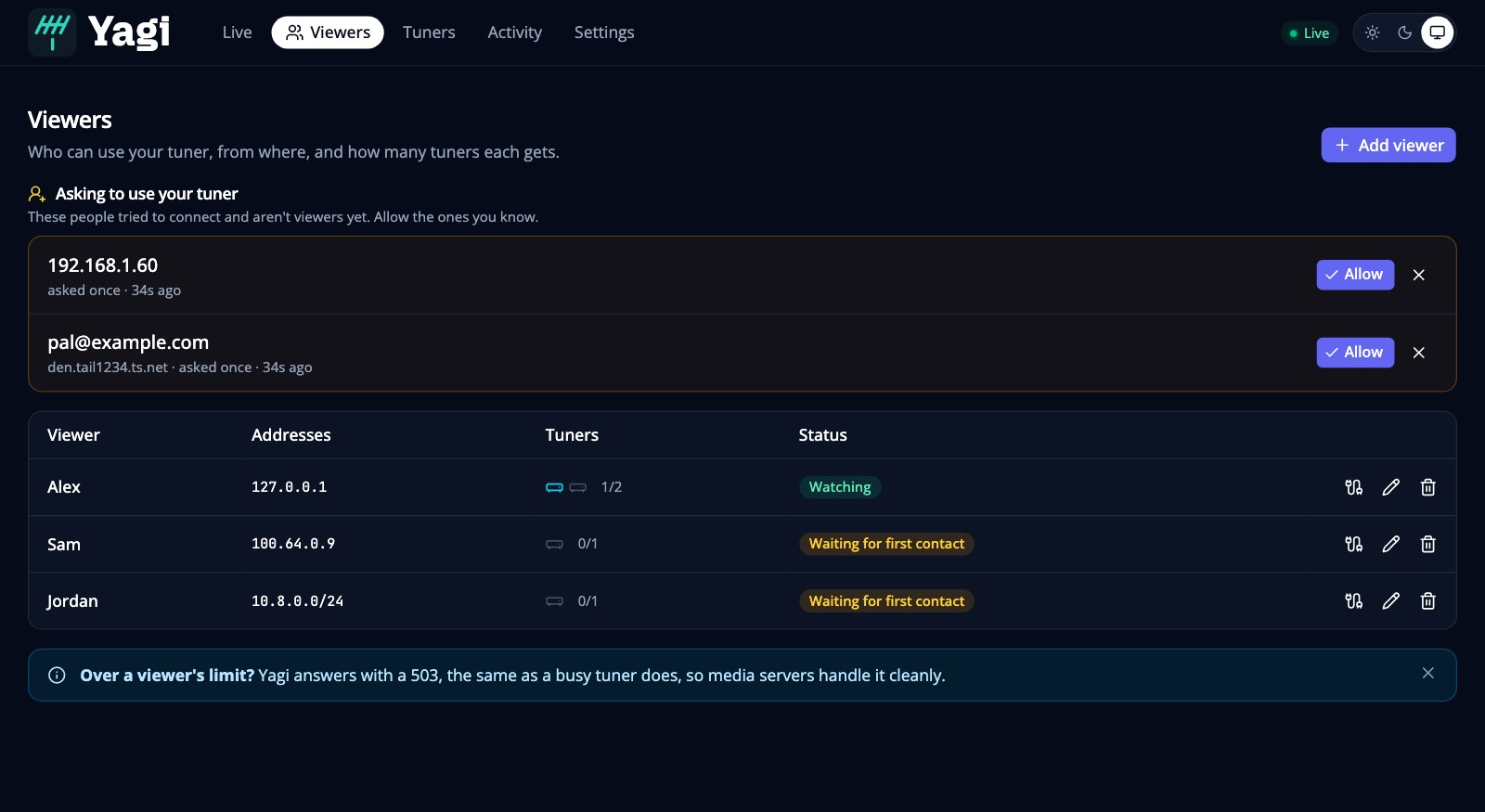
Who may use the tuner, from which addresses, and how many tuners each gets at once. Add viewer walks through three steps (who, how their server reaches yours, and what to do in their media server); Connection steps on a row reopens it. See Getting started.
Above the viewers, Asking to use your tuner lists people who tried to connect and aren’t viewers yet (a friend who has just added Yagi in their media server). Allow makes one a viewer, with a name and a limit, recognized by their Tailscale login or device when Yagi’s own Tailscale knows it and by their address otherwise. Dismiss hides one you don’t recognize. Only people on your network, a VPN or your tailnet can appear, because Yagi serves private networks only.
Tuners
Section titled “Tuners”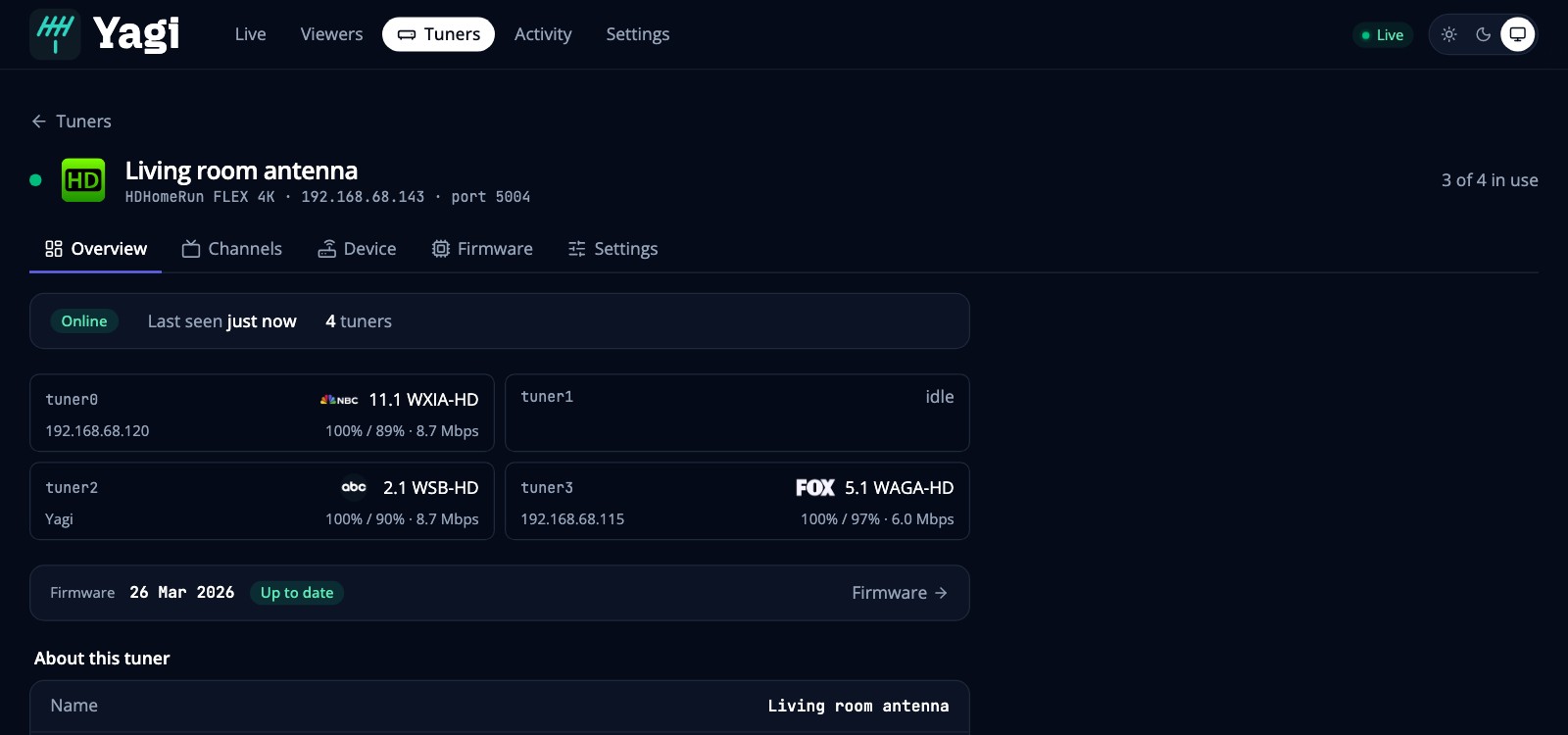
The Tuners page is a list, one row for each tuner with its status, where it is, how many of its tuners are in use and a flag when it has a firmware update. A whole row opens that tuner’s page (the firmware flag goes straight to its Firmware tab). It is a list even with only one tuner, so there is always a way to add another.
Adding tuners. Yagi never adds a tuner by itself. When there is none yet, the page looks for HDHomeRuns on your network while it is open (every few seconds, for a few minutes, with a spinner) and lists each one it finds with a name filled in from the tuner’s own name and an address name such as flex-4k-87, both yours to change, and an Add button (or Add all when there are several). When it has stopped looking, Look again starts another round; Add by address is for a tuner on another network, or when Yagi is in Docker without host networking, which can’t see the broadcast. With tuners already added, Add tuner opens the same list. See Getting started.
A tuner’s page has five sections as tabs, each with its own address (/tuners/<name>/device and so on):
- Overview: how it is right now (online, when it was last seen, how many tuners it has), what is on each of its tuners, a line about its firmware, and what Yagi knows about it (its name, device, model, DeviceID, address and port). Anything with more behind it is a link to the tab that has it: the device’s details go to Device, the name and port to Settings, and the firmware line to Firmware.
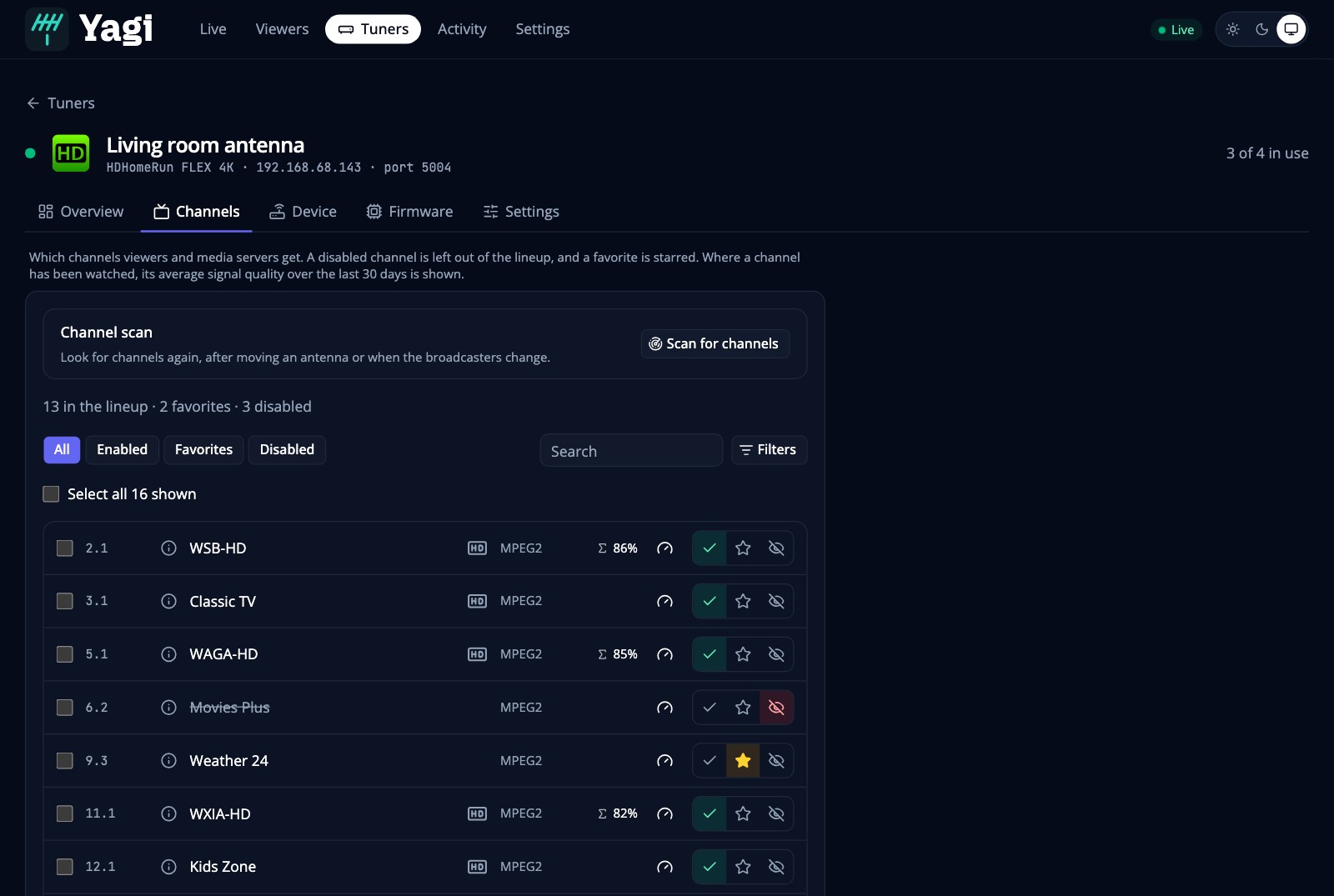
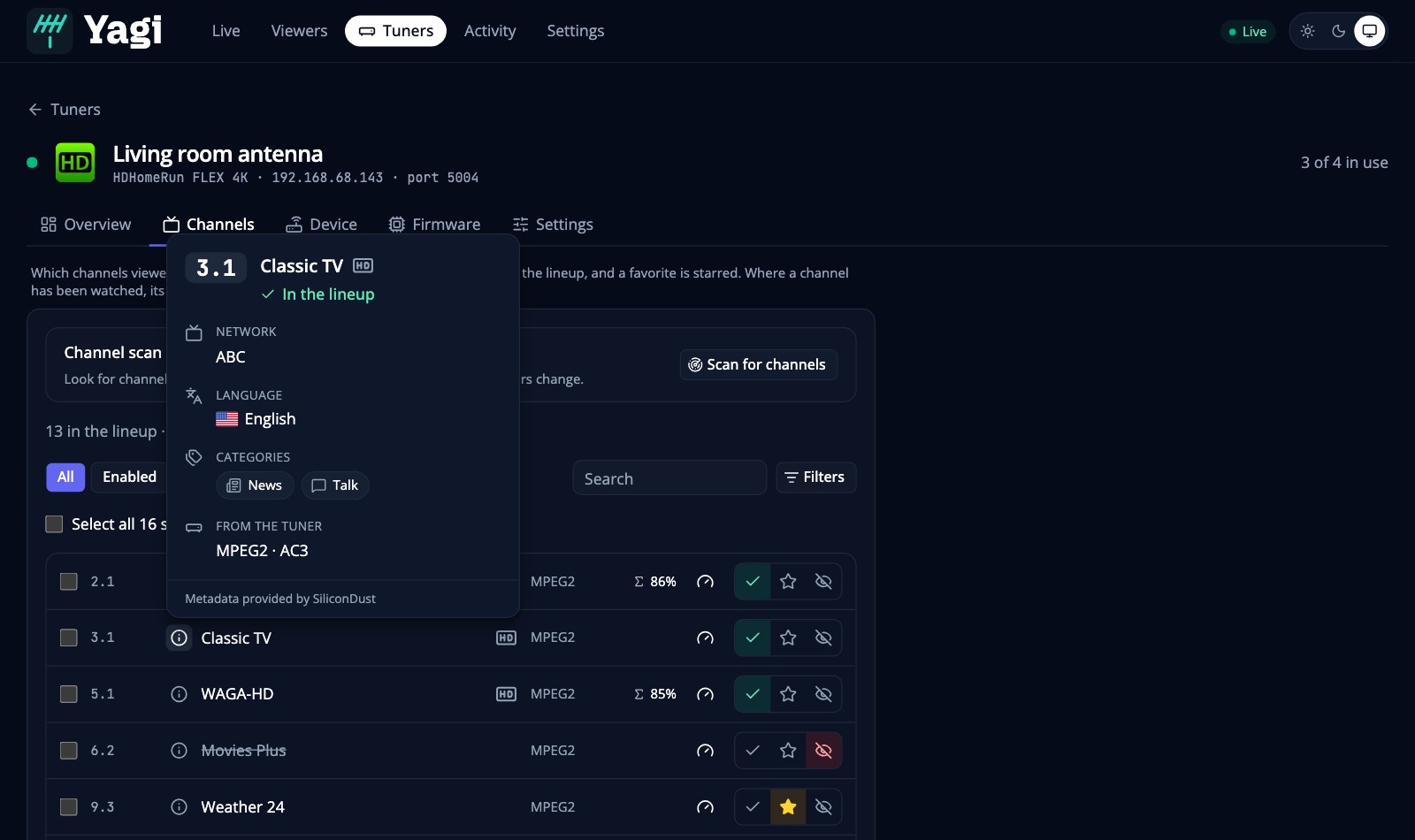
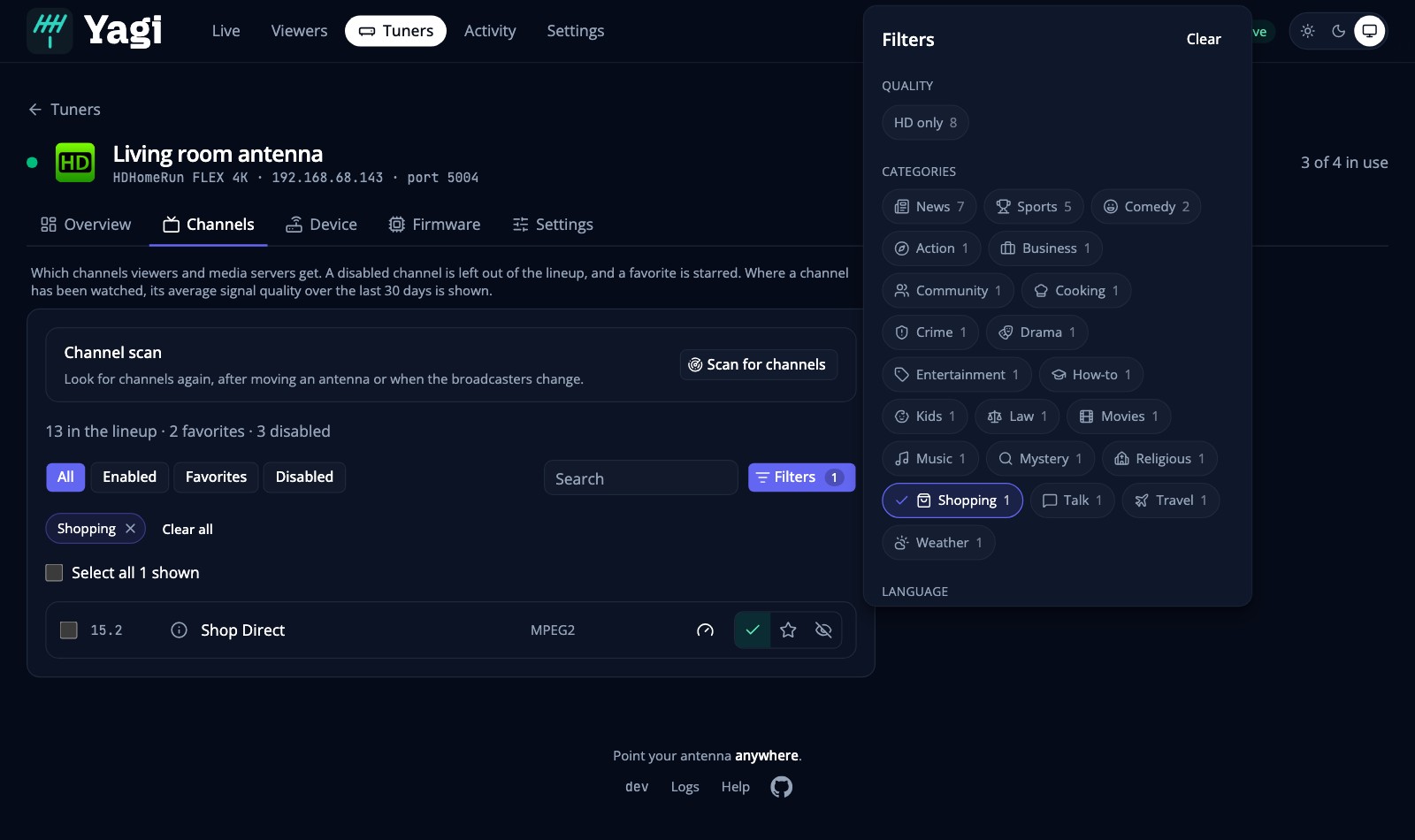
- Channels: every channel the tuner has found, with a button for each to enable it, make it a favorite or disable it (a disabled channel is left out of the lineup viewers and media servers get, so it disappears from their guide when they next refresh). The i beside a channel’s name opens a card about it: its number and name (with the HD icon on an HD channel), whether it is in the lineup, a favorite or disabled, and, from SiliconDust’s program guide, the network it carries, its language (with a flag) and its categories (with a picture for each). Anything the guide doesn’t say is left out. Filter by state, search by number or name, and press Filters to narrow the list by quality (HD only), by category (news, shopping, kids, religious and so on, each with a picture and how many channels it is on) and by language; the ones you have chosen show as chips above the list that you can take off one at a time, and on a phone the buttons stack so nothing scrolls sideways. A channel the program guide says nothing about is left out of a category or language filter, and the panel says how many that is. Tick channels (or select all of those shown) to enable, favorite or disable them together; the changes are sent to the tuner one at a time, with progress, and stop at the first the tuner refuses. Where a channel has been watched, its average signal quality over the last 30 days is shown, colored when it is fair or poor. The gauge button on a channel tests its signal: Yagi tunes a free tuner to it for about ten seconds and shows its strength and quality (or “No signal”), colored when it is fair or poor. It only uses a tuner nothing is using, never interrupts anything, and is greyed out, with the reason, when every tuner is in use or the tuner is scanning. Scan for channels starts the tuner’s own channel scan (Antenna or Cable), after asking, since a scan takes all of the tuner’s tuners until it is done; progress is shown, with a Stop button.
- Device: what the tuner says about itself: hardware model, firmware, ATSC 3.0 DRM version, device ID, MAC address, IP address, subnet mask, channel maps and modulations. It is read when you open it and on Refresh, and it is read-only. Restart turns the tuner off and on again, after asking, and says if anything is in use. There is a link to the tuner’s own page for what Yagi does not show.
- Firmware: the version, when SiliconDust’s changelog was last read, and what changed. When a newer release applies to your tuner there is an Install button; see Configuration for what it does and Security for what it contacts.
- Settings: the name shown on this page (media servers are always told the device’s own name), the port media servers use, and removing the tuner from Yagi (the tuner itself is untouched).
Activity
Section titled “Activity”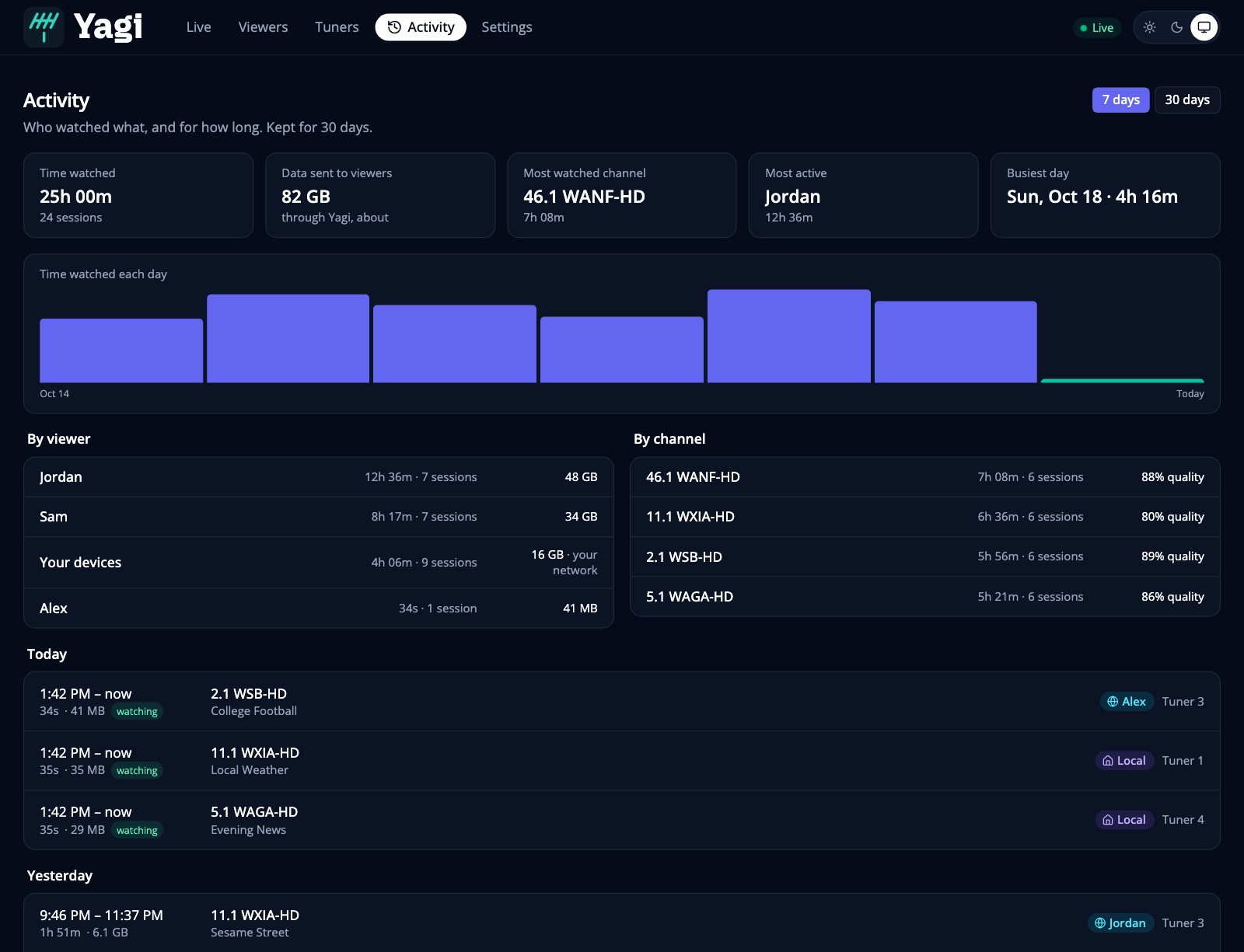
Who watched what, and for how long, for the last 7 or 30 days: the total time, how much data went out to viewers (about, through Yagi, which is what your upload paid for), the most watched channel, who watched most, the busiest day, a bar for each day, a list by viewer (time and data) and by channel (time and the average signal quality, colored when it is fair or poor), and the sessions by day with the shows that were on. A viewer’s name opens their own page: their data and time for each day, what they watched and their sessions. It is kept for 30 days in a file next to the settings file and goes nowhere else. Switch it off, or clear it, in Settings → Privacy; the Activity item then leaves the top bar. See Configuration.
Settings
Section titled “Settings”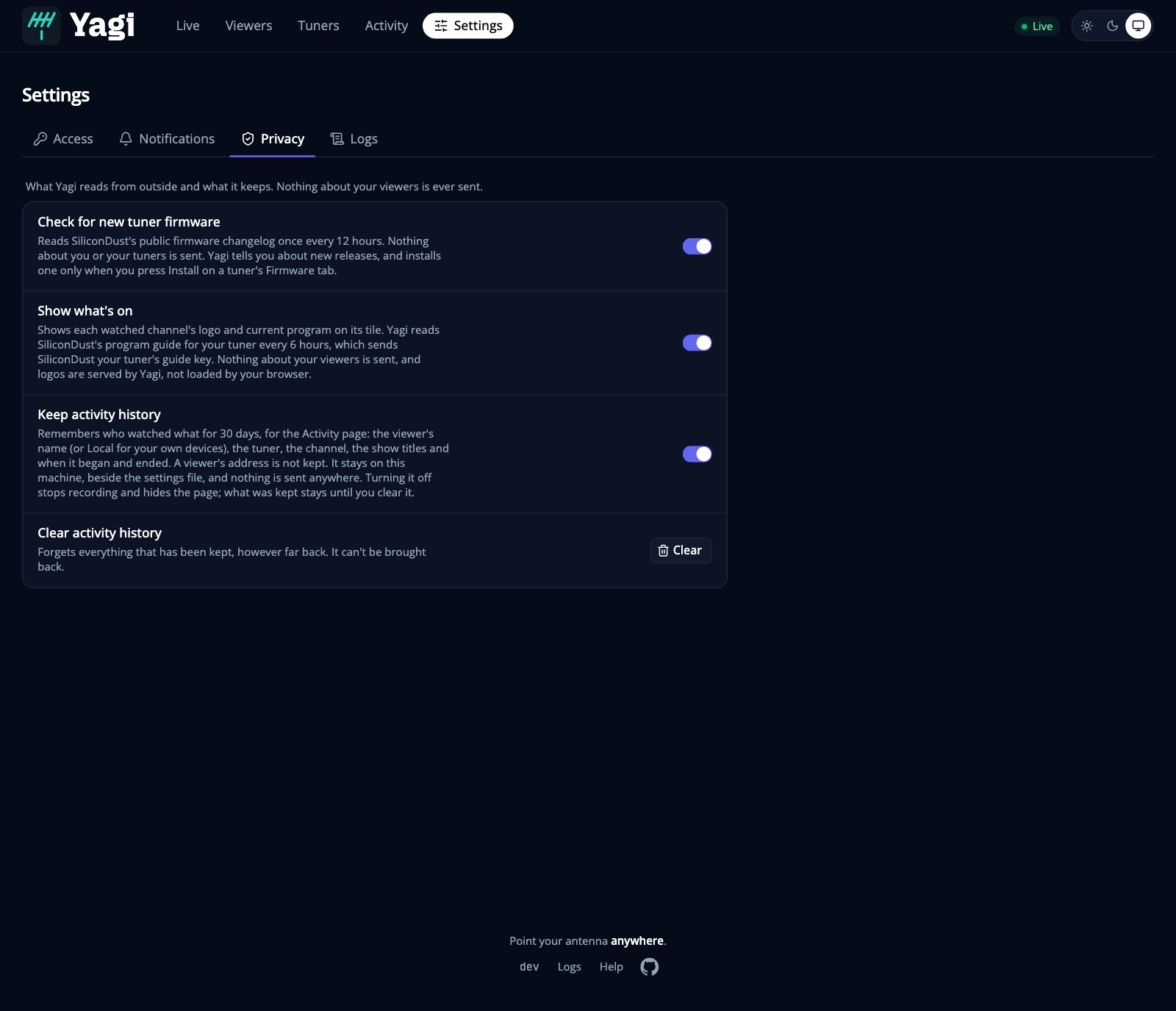
Four tabs, each with its own address: Access (how much of each tuner viewers may use, who may open this page and sign in with Plex, and Tailscale, below), Notifications (ntfy, Pushover or a webhook, and which events send a message), Privacy (the switches for what Yagi reads and keeps: the firmware check, the program guide and the activity history, and clearing that history) and Logs (below). Every setting is explained in Configuration. On a phone the tabs share the width, each with its icon above its name.
Tailscale
Section titled “Tailscale”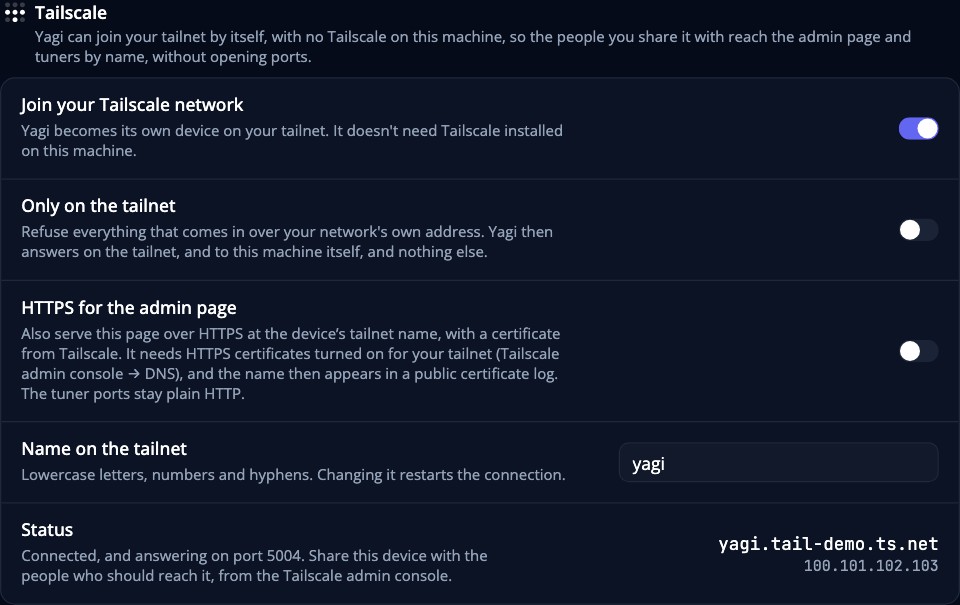
In the -tailscale image, Yagi can join your tailnet as its own device. The section has the switch to join, Only on the tailnet (refuse everything that comes in over the machine’s own network address), HTTPS for the admin page, the device’s name on the tailnet, and its status: the sign-in link while it needs one, then its name and addresses and the ports it answers on. In any other build it says so and shows nothing to change. Everything it does, and what each switch costs, is in Built-in Tailscale.
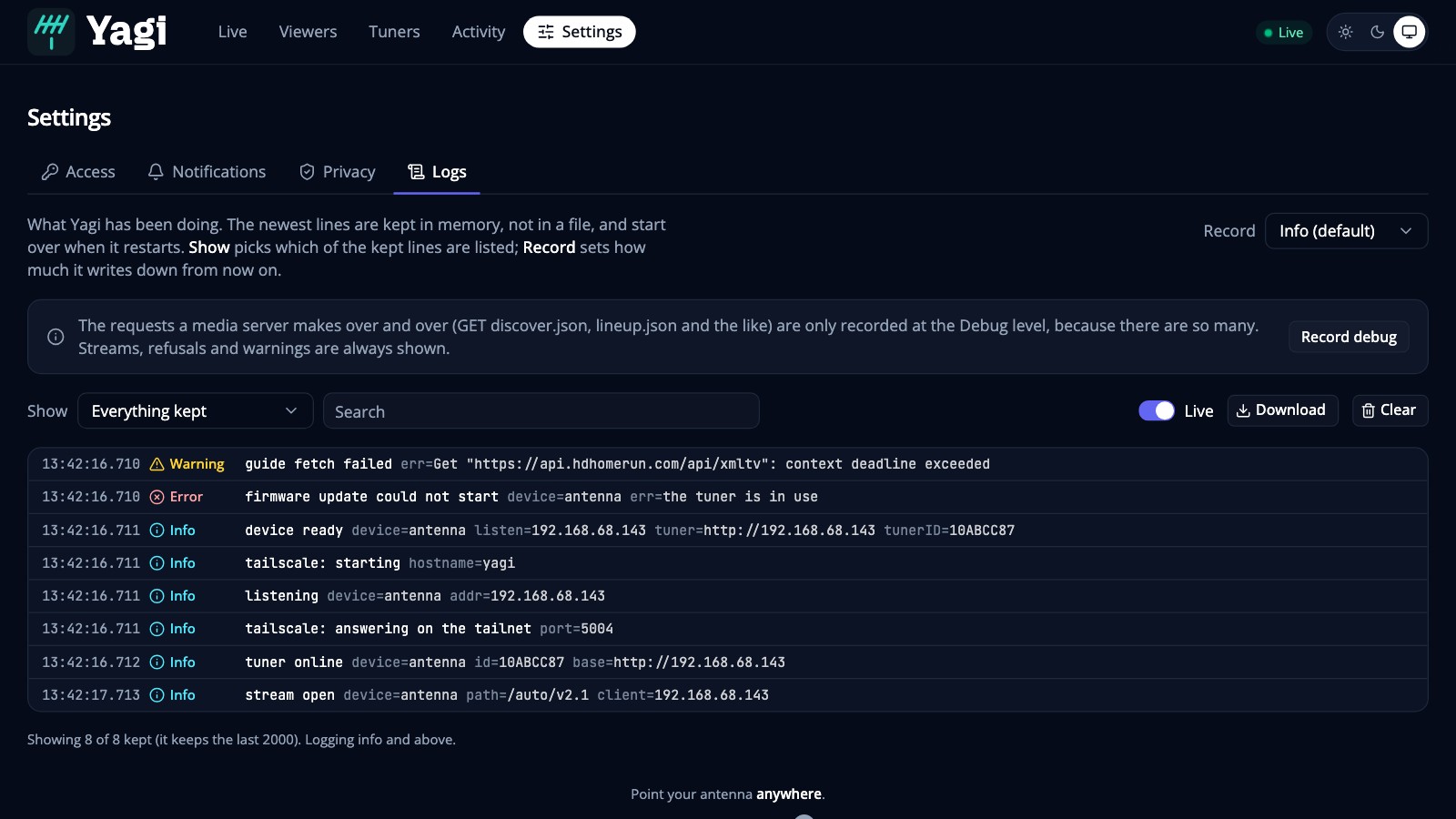
Yagi’s own log. Open it from the Logs tab of Settings, the Logs link in the footer, or, when a tuner is offline, from See why in the logs on its Overview (which opens the log already searched for that tuner): what it has been doing, with the newest line at the bottom. Each line has its time, a level (Debug, Info, Warning or Error, each with its own icon and color), the message and its details. Show everything, info and above, warnings and errors, or errors only; search the messages and their details (the search box has a clear button); Live keeps it up to date every few seconds and following the newest line until you scroll up to read; Download saves what is shown as a text file; Clear forgets what is kept. The Log menu at the top right is how much is logged: Info is the default, Debug adds the detail that is useful when something is wrong, and it is a setting, so it changes at once and is kept. The requests a media server makes over and over (GET discover.json, lineup.json and the like) are only recorded at Debug, because there are so many; a note above the list says so, with a button to switch Debug on (and back). Streams, refusals and warnings are always shown. The lines are kept in memory (the last 2,000), not in a file, so they start over when Yagi restarts; they are also still written to standard error as before (docker logs yagi). Anything that looks like a secret (a token, a key, the guide key) is hidden before a line is kept.
On a phone
Section titled “On a phone”
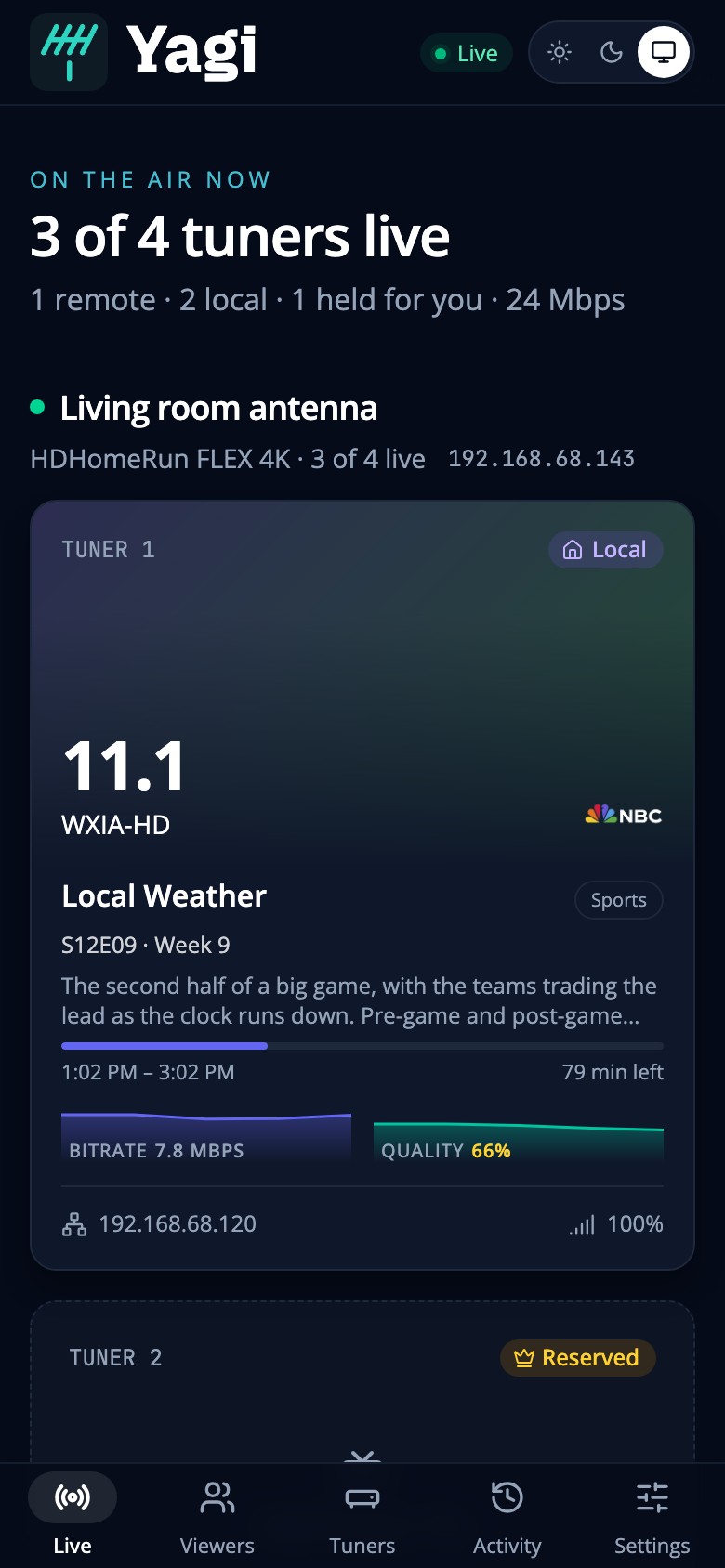
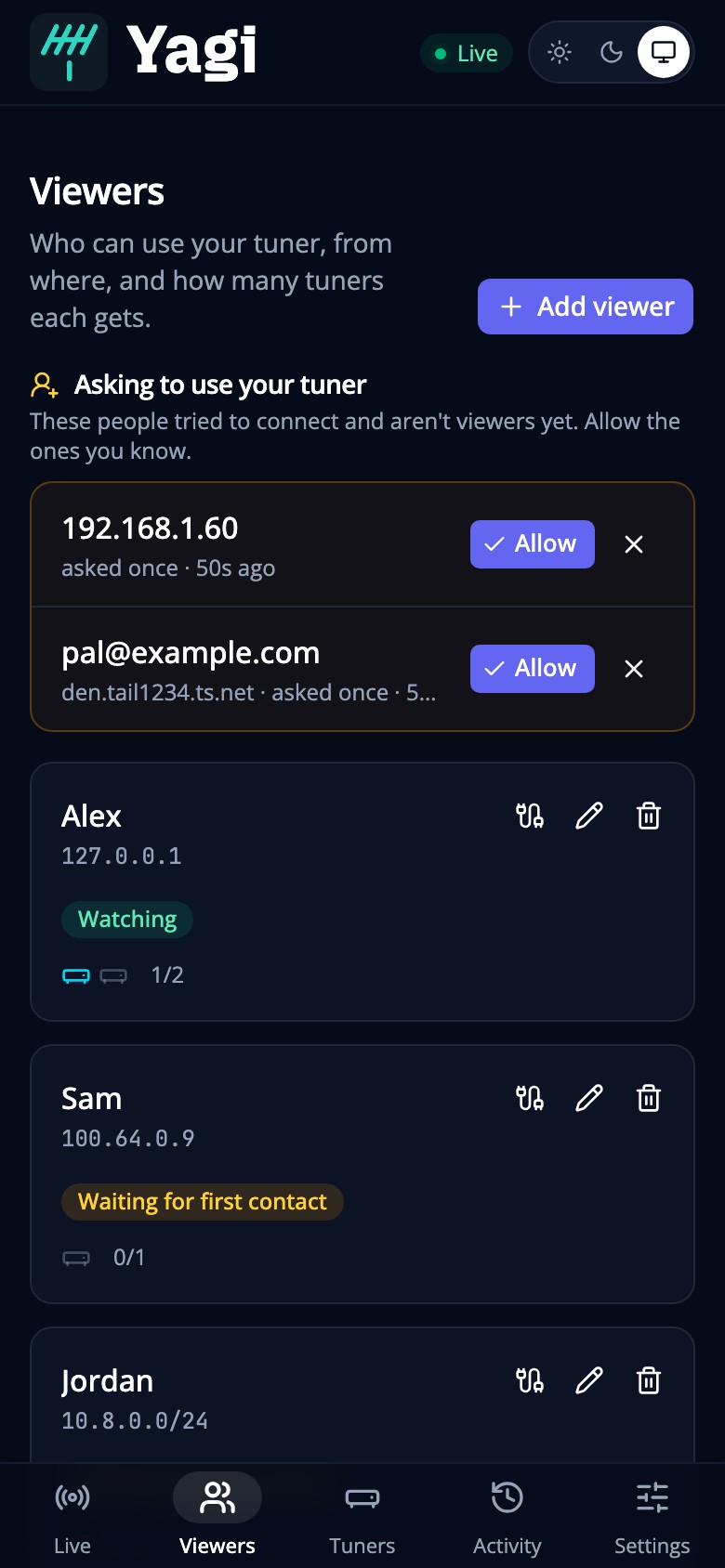
The same pages, with a tab bar along the bottom like a phone app, cards instead of wide tables, and dialogs that slide up from the bottom as sheets. Sign-out moves to the footer.