

Getting started
This takes you from nothing to a viewer watching your tuner. It assumes you have an HDHomeRun tuner on your network and a machine that is always on to run Yagi (a small server, a NAS, a Raspberry Pi: anything that runs Linux, macOS or Docker).
1. Install
Section titled “1. Install”Docker (recommended)
Section titled “Docker (recommended)”Images are published for amd64 and arm64, tagged by release (2026.10.0) and latest.
Make a folder for Yagi and put the compose file in it:
services: yagi: image: ghcr.io/johnschult/yagi:latest # or pin a release, e.g. :2026.10.0 container_name: yagi network_mode: host restart: unless-stopped user: "1000:1000" # a user that owns ./config command: ["-config", "/config/yagi.json"] volumes: - ./config:/configThen mkdir config && chown 1000:1000 config (use the same numbers as user:), write a first settings file
(step 2), and run docker compose up -d.
Use host networking (network_mode: host). Yagi tells its own streams from the ones your own TVs open by comparing addresses,
looks for the tuner with a broadcast on your network, and offers this machine’s Tailscale and LAN addresses when you add a viewer. All three need to see the machine’s real network, which a container on its own bridge network can’t.
(With host networking you can’t also remap the port: set listen in the settings file instead.)
Homebrew (macOS and Linux)
Section titled “Homebrew (macOS and Linux)”brew install johnschult/tap/yagibrew services start yagi # keeps it running, and starts it again after a restartHomebrew installs the release’s own program and checks it against the checksum in the formula, so Node and Go aren’t needed. The settings file is $(brew --prefix)/var/yagi/yagi.json and the log, which has the setup link of step 3, is $(brew --prefix)/var/log/yagi.log. To try it in a terminal first, run yagi. On Linux, brew services needs systemd; without it, use the install script below.
For Yagi’s own Tailscale node, install the other formula instead (from release 2026.10.19):
brew install johnschult/tap/yagi-tailscalebrew services start yagi-tailscaleIt is the same program with the Tailscale node in it, and it keeps its settings in the same place, so switching between them keeps your settings. Homebrew won’t install both at once: brew uninstall yagi first (or the other way round).
The install script (Linux and macOS)
Section titled “The install script (Linux and macOS)”curl -fsSL https://github.com/johnschult/yagi/releases/latest/download/install.sh | shThis downloads the program for your machine (amd64 or arm64), checks it against the release’s checksums before unpacking anything, and puts yagi in ~/.local/bin (no root needed). If cosign is installed it also checks the release’s signature, and installs nothing if that is wrong. It is plain shell: to read it first, download it with curl -fsSLO https://github.com/johnschult/yagi/releases/latest/download/install.sh, look, and run sh install.sh.
Run yagi to start it. To keep it running in the background on Linux with systemd, add --service:
curl -fsSL https://github.com/johnschult/yagi/releases/latest/download/install.sh | sh -s -- --serviceThat installs to /usr/local/bin (it asks for sudo), creates a yagi user that can’t log in, keeps the settings file in /var/lib/yagi/yagi.json, and starts a service. Its log, with the setup link of step 3, is journalctl -u yagi. sh install.sh --uninstall removes the program and the service and leaves your settings alone; sh install.sh -h lists the rest, including YAGI_VERSION to install a particular release.
To install the build with Yagi’s own Tailscale node (what the -tailscale Docker image has), add --tailscale:
curl -fsSL https://github.com/johnschult/yagi/releases/latest/download/install.sh | sh -s -- --tailscaleRunning the script again to update keeps the build you have, so you don’t need the flag a second time; --plain switches back to the one without Tailscale. yagi -version says which one is installed.
Build it yourself
Section titled “Build it yourself”You need Go (see go.mod for the version) and Node 22.12 or newer. ./build.sh checks that you have them (and tells you what to install if not), then builds the web page and the program, which embeds it.
git clone https://github.com/johnschult/yagicd yagi./build.shRun it with ./yagi -config yagi.json. To start it on boot, use whatever your system uses (a systemd unit, launchd, an
Unraid User Script). ./yagi -version prints the version.
Checking a download
Section titled “Checking a download”Each release’s images and archives are signed. The install script and Homebrew check the checksums for you; to check the signature by hand, see Verifying a download.
2. Your tuner
Section titled “2. Your tuner”Tuners you add are saved in the settings file. Each gets a port of its own, starting at 5004 and going up (5005, …), which is the port a viewer’s media server connects to. The web page stays on 9244, and no tuner is ever on it, so a test of port 5004 fails until you have added your first tuner. You can add more, change a tuner’s port, or remove one later on the Tuners page.
If your tuner isn’t listed, Yagi can’t see its broadcast. That happens when the tuner is on another network or VLAN than Yagi, or when Yagi runs in Docker without host networking (which is why the compose file uses it). Add it by its address on the same page (Add tuner), or, for an install nobody opens a page on, set YAGI_TUNER (for example YAGI_TUNER=192.168.1.50).
To see what is on your network from the command line:
yagi discover # in Docker: docker exec yagi yagi discoverIt prints one line for each HDHomeRun it finds: its DeviceID, its address and how many tuners it has, for example 10C03B06 http://192.168.1.50 4 tuners.
The settings file is created with the defaults when Yagi starts, if it doesn’t exist, and the changes you make in the web page are saved to it. If you would rather write the tuners in the file yourself, Configuration has its format.
3. Open the web page
Section titled “3. Open the web page”A new install is closed: nobody can use the tuner yet, and only the machine Yagi runs on can open the web page. To open it from your own computer, use the setup link Yagi writes to its log when it starts for the first time:
FIRST RUN: nobody is an admin yet. To set up, open one of these links from the device you want to use as the admin. ... setup link url=http://100.64.0.5:9244/claim?token=... setup link url=http://192.168.1.5:9244/claim?token=...(docker logs yagi, or wherever you run it.) Open the link that matches how you reach the machine, from the computer you want to use as your admin, and press Make this device an admin. Yagi saves that computer’s address under admin in the settings file and sends you to the web page, http://<this machine>:9244/.
- The link works once, only from a private network (your LAN, Tailscale, a VPN), and only until Yagi restarts. If you restart before using it, a new link is written to the log. Anyone who can read the log can use it, so treat the log like a password until you have.
- Five wrong tries from one address lock that address out for ten minutes.
- If you open the web page on the machine itself (
http://localhost:9244/) you don’t need the link: that machine is always an admin. - If your computer’s address changes (a new DHCP lease, say), you are locked out. Reserve its address in your router (a DHCP reservation, usually under LAN or DHCP settings) so it stays the same. Or add the new one under Settings → Access from the machine Yagi runs on, or, if you use Plex, turn on Sign in with Plex (see Security).
- If the settings file can’t be saved there is nothing to claim into, and no link is offered: fix where the file lives (
-config) first.
4. Add a viewer
Section titled “4. Add a viewer”A viewer is a person or a server you share the tuner with. First decide how they will reach Yagi. Yagi serves private networks only, so it is one of these (the viewer’s side is in Networking, and the Add viewer steps write it out with your addresses filled in):
| They are… | How they reach Yagi | What you list |
|---|---|---|
| On Tailscale | They join your tailnet (or you share Yagi’s node with theirs), and add Yagi in their media server at its tailnet name or 100.x address. | Their Tailscale login or device (with Yagi’s own Tailscale), or their 100.x address. |
| On a VPN (WireGuard, ZeroTier, a site-to-site VPN) | The same, over the VPN: they add the Yagi machine’s address on the VPN. | Their address on the VPN. |
| On your own network | Nothing to set up: they add the Yagi machine’s LAN address. | Their LAN address. |
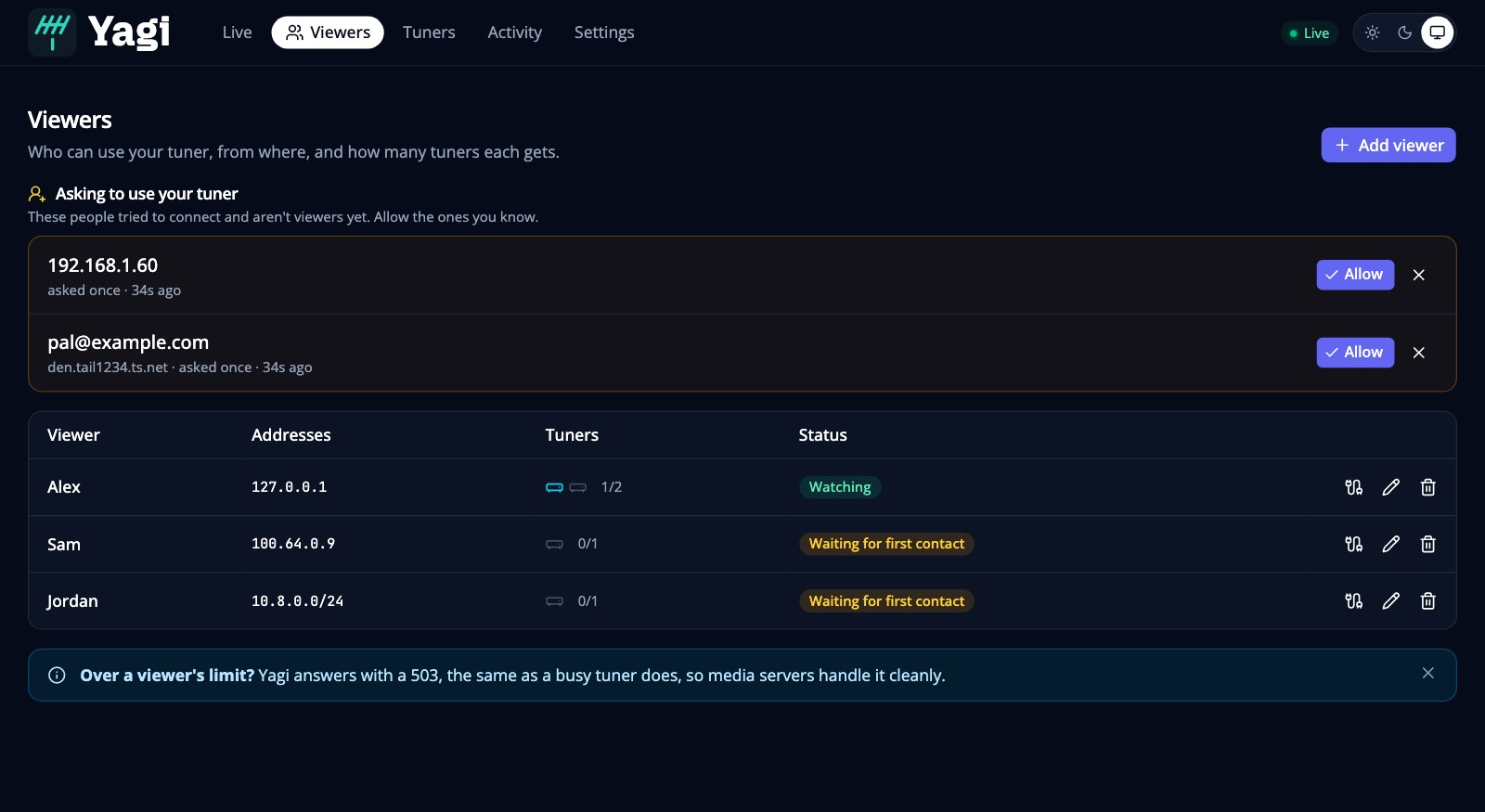
The easiest way is to let them ask. Give them the address to add in their media server (the steps are in Media servers). When they try, Yagi refuses, because they aren’t a viewer yet, and they appear on Viewers under Asking to use your tuner as “pal@example.com” (their Tailscale login, when Yagi’s own Tailscale is used), their device, or their address. Press Allow, give them a name and a tuner limit, and they’re a viewer. You didn’t have to find out their address, and over Tailscale they’re recognized by who they are, so it keeps working when their device or address changes. You also get a notification the first time someone asks (Settings → Notifications). Dismiss hides one you don’t recognize.
Or add them by hand when you already know their address: Viewers → Add viewer is a short set of steps (who they are, how their server reaches yours, what to do in their media server; steps 4, 5 and 6 here). Start by filling in:
- Name: whoever it is.
- Addresses: the address their media server will connect from, as your Yagi sees it. Single addresses (
100.64.0.7) or ranges (10.8.0.0/24), or a Tailscale login (tailscale:pal@example.com) with Yagi’s own Tailscale. A public internet address is refused: see Networking. - Tuners: how many tuners they may use at once.
Only listed viewers can use the tuner, and only loopback (this machine), the addresses under admin in the settings, and signed-in Plex accounts can open the admin pages.
If you lose access to the web page, you can always get back in by one of these:
- Open it from the machine Yagi runs on (
http://localhost:9244/), or through an SSH tunnel:ssh -L 9244:127.0.0.1:9244 yourserver, then browse tohttp://localhost:9244/. - Add your own computer’s address to
adminin the settings file, then send YagiSIGHUP(or restart it). - Turn on Sign in with Plex (Settings → Access) while you still have access, then add your Plex account. After that you can open the page from any address that can reach the port. See Security.
5. Point a media server at it
Section titled “5. Point a media server at it”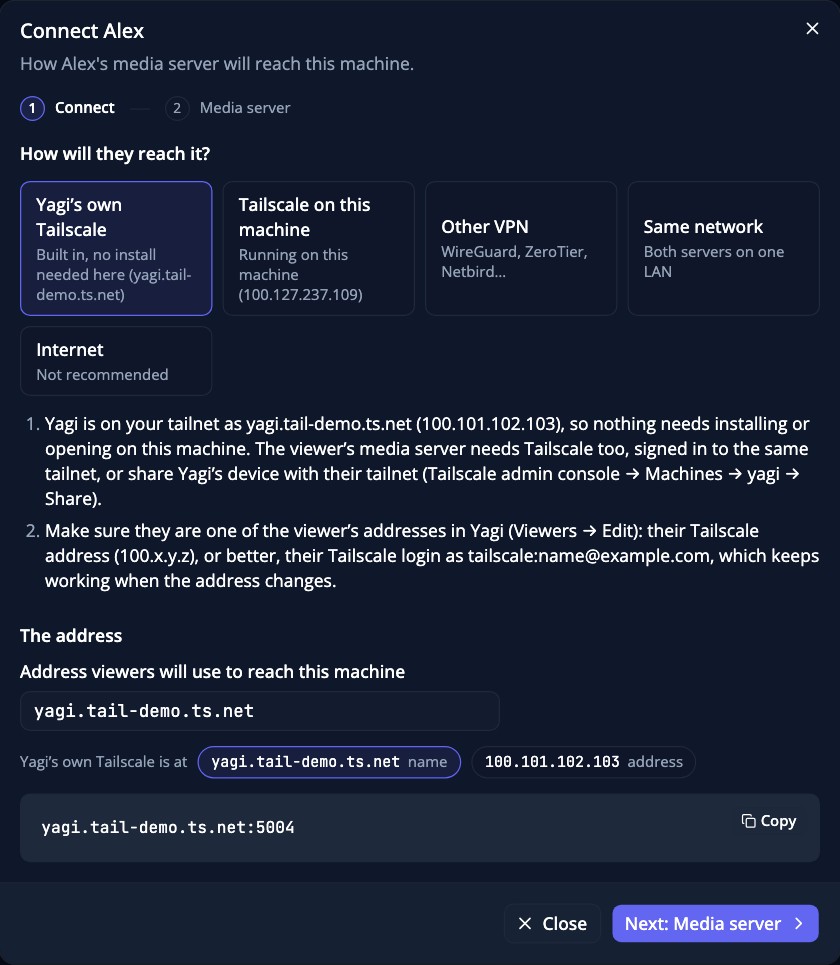
Yagi looks like an ordinary HDHomeRun at <address>:<port>. The Add viewer steps write this out for you, with your real addresses filled in; for a viewer you have already added, use Connection steps on their row on the Viewers page.
For the full walk-through, see Media servers.
6. Check it works
Section titled “6. Check it works”On the viewer’s server: curl http://<address>:5004/discover.json should print JSON that mentions your tuner’s name and an address that is
Yagi’s, not the tuner’s own. Then watch a channel. In the web page’s Live view you will see the tuner’s tile with the channel, who is watching, the bitrate and the signal.
If something doesn’t work, Troubleshooting covers the usual causes.
Updating
Section titled “Updating”- Docker:
docker compose pull && docker compose up -d. If you use Watchtower or something like it,latestupdates itself. To stay on one release, pin the tag. - Homebrew:
brew upgrade yagi, thenbrew services restart yagiif it runs as a service. - The install script: run the same command again (with
--servicetoo, if that is how you installed it, which also restarts the service). - From source: pull, rebuild, restart.
Releases are numbered by calendar, YYYY.MM.PATCH (for example 2026.10.0). The version is at the bottom of the web page, linked to its release notes.
Your settings file carries over between versions. Read the release notes before updating: if a release changes the settings, they say so.